Showing posts with label Multimedia. Show all posts

Saturday, June 18, 2011

Creating Digital Multimodal Texts


With the introduction of the Australian Curriculum, there is an emphasis on the use of Multimodal Text in English. ICT offers a great range of tools to allow students to create digital multimodal texts, such as comics, animations, digital storytelling, video & audio, ebooks, poster & cover design and game design .


What are multimodal texts?

A text may be defined as multimodal when it combines two or more semiotic systems. There are five semiotic systems in total:

1. Linguistic: comprising aspects such as vocabulary, generic structure and the grammar of oral and written language

2. Visual: comprising aspects such as colour, vectors and viewpoint in still and moving images

3. Audio: comprising aspects such as volume, pitch and rhythm of music and sound effects

4. Gestural: comprising aspects such as movement, speed and stillness in facial expression and body language

5. Spatial: comprising aspects such as proximity, direction, position of layout and organisation of objects in space.

Multimodal texts can be delivered via different media or technologies. They may be live, paper, or digital.

(Bull and Anstey, 2010)


Photostory 3, Windows Movie Maker, Audacity, Soungle, Free Sound Project


Use software usch as powerpoint, publisher, paint.net or photoshop


Tag Cloud: Wordle, Tagxedo


Anstey, M. & Bull, G. (2010) Helping teachers to explore multimodal texts. Curriculum Leadership, 8 (16)


Friday, July 10, 2009

Tools to use at the beginning of a school year


It is important for a teacher to know their students in order to best cater to their strengths and needs and to provide a positive learning environment. This can be done by using digital tools such as:

1. Talking Avatars


Students can introduce themselves using a talking avatar. You might set out specific questions you would like answered in this task.


2. Visual Communication


Using avatar design sites, students create an avatar which resembles them and contains visual images which represents something about them. Eg. Holding a guitar – likes music.


· Students could write about their avatar and explain the meaning of the visual images
· Set up a guessing game and see if the class can guess who is who.
· Print out the avatars and distribute them and ask students to find the person who belongs to the avatar and interview them - ice breaking exercise.
· Display the avatar images around the room


Sites to use are:


Using the wordle site, produce a word cloud made up of words which represents them. Go to this link for more information.


Produce a ‘About Me’ world in the Shidonni site. Go to this link to see more.


5. Personal Profile


Students can produce a personal profile using an eportfolio which is password protected.


Create a personal profile using a presentation or virtual book.


Wobook

6. Time Line


Students can create a virtual time line of their life documenting events with text and images.


Dipity

7. Online Survey


Identify prior knowledge and interest by creating an online survey for your students.


Questionform


8. Determine students’ strengths and learning styles

It is important to know your students' strengths and weaknesses. It is also important that students know their own strengths and weaknesses. The following a tests which evaluate these.


Saturday, July 04, 2009

Pivot Stick Figure Animator

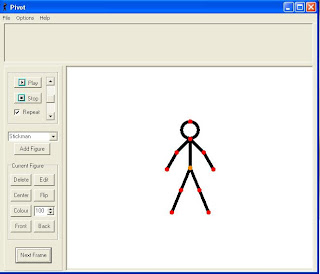
Pivot Stickfigure Animator is a fun and easy way to produce an animation. You could use it as a task, introduction into animation, telling a story or to develop design and ICT skills. This is a great program that is free to download.


You can create an animation using a stickfigure or other characters. It can be as simple and as complex as you want it. It can be used from primary school students through to high school.


First I ask students to design a background using a drawing software, usually MSPaint (but any will do). It helps the creation of the animation if the background contains elements which the figures can interact with. eg. Hurdles to jump, diving board. It is also possible to use digital images as backgrounds.


The animation is quite simple to make, simply move the figure using the red points and then click on next frame button. Continue until the animation is finished. There is also the option to add items into the animation which can also move. eg. a ball. The final animation can be saved it as a Gif file. This can then be downloaded into Windows Movie Maker and students can add a title, credits and music or add it to a power point presentation.


I like to choose a theme and make certain specifications, such as, no violence and no one can get hurt.


I found ‘Olympic Sports’ was a great theme to use giving students many ideas to choose from.
You can download the program from http://www.snapfiles.com/GeT/sTiCkFiGuRe.html

Moshi Monsters

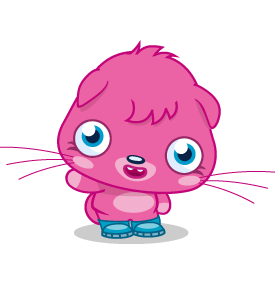
There are many virtual pet games available at the moment. The trick is finding a game which students regard as fun, engaging, has great graphics and is challenging. One such site is Moshi Monsters.
Moshi Monsters is a Web 2.0 site where students register and adopt a monster. The site is monitored and is promoted as fun, safe and educational. It is a social networking site which also incorporates elements of a Virtual World. There are several components to this site which make it a viable educational activity. Participants must follow safety guidelines and learn how to interact in a virtual world safely. The graphics are excellent with interesting monsters. They cater for both girls and boys.


Social Network

Students can make friends with other monsters and send messages. This encourages students to use online communication tools and improve their ICT skills and learn how to do it responsibly.

Currency

Students earn currency which is called ‘Rox’. They can earn this currency by completing educational puzzles which test general knowledge, maths, spelling and literacy. With this currency participants can visit virtual shops and buy items for their monster’s house or food for their monster or clothing items.

Reward

As students increase their participation they can work through levels and are awarded a virtual trophy for each level and are given a set of shelves to display them on. This reward system provides a motivational tool and boosts their confidence as they achieve the levels. Pet Monster Students feel ownership over their monster. They can feed them, dress them and design their living environment. Students choose their type of monster, colours and its name.

Follow up Activities

This site leads to many potential activities.

Such as:

* Website analysis

* Website comparison using graphic organisers

* Design their own monster

* Make a stop motion animation using a 2D cut out of a monster

* Document the monster's progress by taking screen captures.

* Create 3D versions of monsters using clay, papier mache or even a soft sculpture with material and stuffing.

* Use as a tool to look at economics and document purchases made at the virtual shops.

* Focus on internet safety and how to use online communication responsibly.

Going Beyond a Text Document

Using digital tools in education can add fun and creativity to a task and help to engage students in learning. An example of this is using different digital tools and media for a task instead of a typed text document.

Here are a few ideas which could be applied to any subject area or assessment piece such as a review, self-evaluation, analysis, interview, study or report. You may choose one to focus on or give students a few to choose from depending on their strengths and learning styles.

Avatar Video:

Using a webcam and avatar software. I use Logitech Quickcam Vision Pro. The software calibrates with the face of the person sitting in front of the camera and the avatar imitates the person’s movements. The camera has a built in microphone which allows the student to record their voice. The video is recorded with the final result looking like the avatar is speaking. This is also a useful alternative to oral presentations for students who are nervous of standing in front of the class. The video can also be added to a power point presentation.

Talking Picture:

Using a site called MashFace. You can combine your voice and with a picture to look like the picture is talking. This could be a great task for a portrait task where students could find a painting of a portrait and do an analysis of the painting. Alternatively, students could choose an identity depending on the task, such as a musician, sportsperson, actor, famous person from history, etc.

Avatars with text:

Another alternative is to use an avatar again but instead use written text and a generated voice.

Voki - This site allows you to choose an avatar , type in text and voice is generated. The site provides script to allow you to embed it into a Virtual Classroom, blog or website.

Xtranormal - This site also allows you to choose an avatar, however, you can include more than one character. Therefore, the task could be to create an interview. The voices are also generated from text. You can also include movement of the figures.


Comic Strip:

Students can write their review in the form of a comic strip with characters. They could set it up as an interview with one character asking the other character questions about the work or it may be one character giving the information. The characters are provided students simply drag and drop content into their comic strip. Once the comic is created students can save a screen capture of it.

Some sites to use are :
Bitstrips
Pixton
Super Action Comic Maker
Make Beliefs Comix
Myths and Legends Story Creator 2
Go Animate Toondoo
Creaza

Animated Movie:

You can create an animated movie using characters and text or voice recordings. These sites provide backgrounds and characters. You simple drag and drop.

Kerpoof - Movie option
Dfilm
Creaza
Moviestorm


Make a Storybook

Create a virtual story book by typing in text and adding backgrounds and characters.

Kerpoof - Story Option
My Story Maker

Make an Ebook

Make an EBook which is a virtual book which allows you to turn the pages and add all your own content.

Myebook – create an Ebook by adding photos, images, audio and video or convert PDF files

Wobook – convert files such as PDF, Word or Power Point into a virtual book.

Voice with a presentation

Produce a presentation to include text or a voice recording.

Voice Thread
280 Slides
Empressr
Animoto

Make a Photostory

Using Photostory , create a presentation combining images with music and a voice recording.