Showing posts with label Photography. Show all posts

Friday, May 15, 2015

4 easy to use image overlay tools to create illusions


The technique of layering images, masking and erasing, makes it possible to manipulate images to create illusions. This can often be done using two images - a background image and a foreground image. Parts of the foreground image are erased to reveal the background image.
There are many ways this technique can be used with students:
Such as:


·        Virtual trip: change the background image to anywhere in the world, create a travel journal or travel postcards.


·        Mythical creature: merge animal parts to create a new creature with powers.


·        Superpowers: create the illusion of super human strength, invisibility or the ability to fly.


·        Surrealism: create a surrealistic image by placing objects out of context.


·        Out of proportion: Create the illusion that something has grown or shrunk by placing it next to objects which are out of proportion.


·        Space exploration: use images of space and planets for the background.


·        Travel through time: use images from the past as a background and add a black and white or sepia filter, students could also dress in relevant costume.


·        Jump into a story: use images reflect from a story.


·        Be the star of a comic: add images to a comic creator


·        Clone yourself: ever wished you could be in two places at once, take multiple photos of yourself in different poses and add them to the same background image.


·        Mirror image: create the illusion of a mirror image.


·        Evil twin: take on two personas in the same image.

There are many software options which allow you to do this technique, however, there are now many easy to use options.

1. Superimpose

Available for iPad and Android

Provides the ability to layer and mask your own images.

2. Clone camera
Android version: Clone camera 2.0
This app provides the ability to merge images and overlay.

iPad version
This app provides a range of free images for the background. You can buy the upgrade which will provide more images. You can use your own image for the foreground image. Very easy to use, simply erase the background of the foreground image. The free version does have ads.
4. Microsoft PowerPoint
Thought it was worth mentioning the remove background function in PowerPoint which is very effective and easy to use.
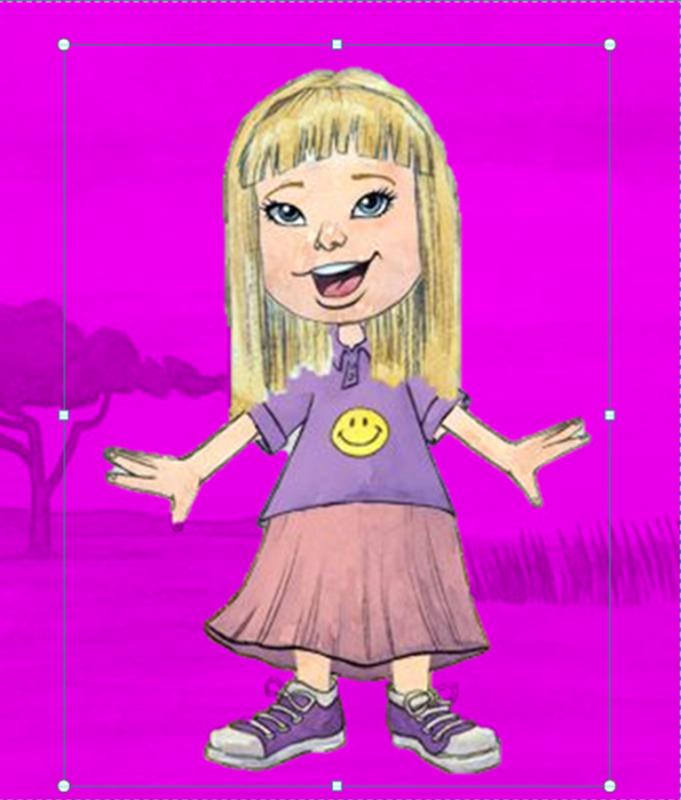
In the picture tools, select the option Remove background. Tools will then appear to indicating mark areas to keep and mark areas to remove. A purple mask will appear over the image, the purple areas will be removed. Layer images by right clicking and selecting Bring to front or send to back.

Sunday, August 25, 2013

4 Apps to Create Designs with Words

Creating designs with words can be a great way to reinforce spelling , learning of new words and describing a theme or topics.  Students can create their own designs and use them to decorate the classroom. here are 4 great apps which allow you to design using words in different ways.


Create a collage of words and customise text, colour and layout.


This app allows you to draw a line or choose a created line and the add text to the line.


Type the text you wish to use and customise font, size and colour and then draw on the device and the words appear.


With this app you can take a photo or use one from the gallery, type in a set of words and the app will apply the words to the image. There are a few styles to choose from and colour schemes.  The effects look great.


Saturday, August 24, 2013

Turn photos into art with these 3 apps


Popsicolor is a great photo editing app from the creator of Percolator. It turns your photos into an ink drawing using two colours. It is easy and fun to use. You can load images from your photo gallery on your device or take a photo.


This is another photo editing app which allows you to be creative with both images and videos. You can select from a range of tools to create artistic effects.


Repix provides you with a range of artistic effects which you apply straight to the image by drawing on the iPad.  This gives you freedom to add effects where you want.


Saturday, March 24, 2012

Creating Comics with Photoscape

Photoscape is a free software which you can download. This software has many uses but the one which I really like is the ability to create photo collages and add speech bubbles.
It would be interesting to hear how others would use this software. It is great for creating Digital Storytelling, comics, digital multimodal products and collages.

To create a comic click on 'Page'.
You can then select the size of the page and select the page template you wish.


Change the size by clicking on Edit, an A4 size is Width: 720 and Height 1040

You select the folder with images and click and drag the images into the collage.
To add the speech bubble, click on edit and then object. Customise the speech bubble.
You can then save the page as a jpeg file to your computer.


Creating Photo Collages can also be a great way to tell a story by choosing a theme or take photos of the same object from different angles.  I would love to hear ways you would you this software.

Wednesday, April 06, 2011

Using Powerpoint to Remove Backgrounds

I love Powerpoint (yes you heard right).  Once you start playing with the page dimensions it is amazing what you can come up with.  I use it mainly now for designing and making comics rather than presentations.  One great feature with I love on the 2010 PowerPoint is the Remove Background option. When you insert an image and select Picture Tools you will see this tool bar.


Select Remove Background.  The background will appear purple.  Just move the selected area until the image you want to keep has no purple on it.


When you are happy with your selection, click on Keep Changes and …..


By cropping an image or yourself out of a photo it allows you to create some great learning activities which can apply to a range of contexts such as,

  • Paste face on to animals, creatures or avatars
  • Go on a Virtual field trip: place yourself into images from around the world
  • Time travel: place yourself into images from history
  • Personalise a story: students can place themselves into a story
  • Experiment with scale: make an object look larger or smaller than real life by placing it next to another object. Here is an example from http://www.worth1000.com/ 

Saturday, January 22, 2011

Shape Collage

An interesting way to present images is in a collage. A free download software is http://www.shapecollage.com/ . This program will allow you to select your images and the shape you would like them arranged in. You can select shapes, letters or even words. There are many ways to use this:


• Do a class collage of images of students in your class into the shape your class name eg. 3B

• Create the alphabet using images starting with that letter

• Create your name using images representing you

• Display images relating to themes to stimulate ideas and discussion


Simply drag your images into the photo area and select your shape.

Here are some examples:


D for Dinosaurs